|
|
| (12 intermediate revisions by 5 users not shown) |
| Line 1: |
Line 1: |
| = Toolbars =
| | {{main|Legacy Maemo 5 Documentation/Graphical UI Tutorial/Toolbars}} |
| Toolbars usually simplify the customization of widget look and layout by grouping widgets. The Hildon framework provides two specialized toolbars: HildonFindToolbar and HildonEditToolbar. You can also use GtkToolbars in your Hildon application.
| |
|
| |
|
| | Toolbars usually simplify the customization of widget look and layout by grouping widgets. The Hildon framework provides two specialized toolbars: <code>HildonFindToolbar</code> and <code>HildonEditToolbar</code>. You can also use <code>GtkToolbar</code>s in your Hildon application. |
|
| |
|
| ==Find toolbars == | | ==Find toolbars == |
| HildonFindToolbar is a toolbar that contains a search entry and a dropdown list with previously searched strings. An internal GtkListStore stores the items in the dropdown list. This list is a property of the widget called "list".
| |
|
| |
|
| To create a HildonFindToolbar, use the following:
| | <code>HildonFindToolbar</code> is a toolbar that contains a search entry and a dropdown list with previously searched strings. An internal <code>GtkListStore</code> stores the items in the dropdown list. This list is a property of the widget called "list". |
| | |
| <tt>GtkWidget<span><font color="#990000"><nowiki>*</nowiki></font></span> <span>'''<span><font color="#000000">hildon_find_toolbar_new</font></span>'''</span> <span><font color="#990000">(</font></span><span>'''<span><font color="#0000FF">const</font></span>'''</span> gchar <span><font color="#990000"><nowiki>*</nowiki></font></span>label<span><font color="#990000">);</font></span>
| |
| GtkWidget<span><font color="#990000"><nowiki>*</nowiki></font></span> <span>'''<span><font color="#000000">hildon_find_toolbar_new_with_model</font></span>'''</span> <span><font color="#990000">(</font></span><span>'''<span><font color="#0000FF">const</font></span>'''</span> gchar <span><font color="#990000"><nowiki>*</nowiki></font></span>label<span><font color="#990000">,</font></span>
| |
| GtkListStore <span><font color="#990000"><nowiki>*</nowiki></font></span>model<span><font color="#990000">,</font></span>
| |
| gint column<span><font color="#990000">);</font></span>
| |
| </tt>
| |
|
| |
|
| | To create a <code>HildonFindToolbar</code>, use the following: |
| | <source lang="python"> |
| | hildon.FindToolbar(label, model=None, column=-1) |
| | </source> |
| In both functions the argument label is used as label which be displayed as label for the dropdown box. | | In both functions the argument label is used as label which be displayed as label for the dropdown box. |
|
| |
|
| Line 20: |
Line 17: |
| If you use the first function to create the toolbar, set the properties "list" and "column" manually. | | If you use the first function to create the toolbar, set the properties "list" and "column" manually. |
|
| |
|
| This widget provides the function f for set and retrieve the index in the model of the current active item on the combo. An index -1 indicates no active items in both functions. | | This widget provides functions to set and retrieve the index in the model of the current active item on the combo. An index of -1 indicates no active items in both functions. |
| | <source lang="python"> |
| | def set_active(self, index) |
| | def get_active(self) |
| | </source> |
| | To get the index of the most recently added item in the toolbar, use the following function: |
| | <source lang="python"> |
| | def get_last_index(self) |
| | </source> |
| | Alternatively, you can use a <code>GtkTreeIter</code> to reference the current active item. |
| | <source lang="python"> |
| | def set_active_iter(self, iter) |
| | def get_active_iter(self) |
| | </source> |
| | After creating and properly setting up the toolbar, attach it to any window. <code>HildonWindow</code> provides the following function to attach a toolbar: |
| | <source lang="python"> |
| | def add_toolbar(self, toolbar) |
| | </source> |
| | In case you need to add a common toolbar to all windows in your program, <code>HildonProgram</code> provides the following function to set and retrtieve a common toolbar to each window registered into the curretn program: |
| | <source lang="python"> |
| | def set_common_toolbar(self, toolbar) |
| | def get_common_toolbar(self) |
| | </source> |
| | Here a simple example that shows how to deal with a <code>HildonFindToolbar</code>. |
|
| |
|
| <tt><span><font color="#009900">void</font></span> <span>'''<span><font color="#000000">hildon_find_toolbar_set_active</font></span>'''</span> <span><font color="#990000">(</font></span>HildonFindToolbar <span><font color="#990000"><nowiki>*</nowiki></font></span>toolbar<span><font color="#990000">,</font></span>
| | [[Image:example-toolbar.png|400px]] |
| gint index<span><font color="#990000">);</font></span>
| |
| gint <span>'''<span><font color="#000000">hildon_find_toolbar_get_active</font></span>'''</span> <span><font color="#990000">(</font></span>HildonFindToolbar <span><font color="#990000"><nowiki>*</nowiki></font></span>toolbar<span><font color="#990000">);</font></span>
| |
| </tt>
| |
|
| |
|
| To get the index of the most recently added item in the toolbar, use the following function:
| | '''Example 4.1. Using a Find Toolbar''' |
| | <source lang="python"> |
| | # Based on C code from: |
| | # "Hildon Tutorial" version 2009-04-28 |
| | # Example 4.1, "Using a Find Toolbar" |
| | |
| | import sys |
| | |
| | import gobject |
| | import gtk |
| | import hildon |
| | |
| | def on_history_append(toolbar, user_data): |
| | # Get last added index |
| | index = toolbar.get_last_index() |
| | |
| | # Get the inner list |
| | list = toolbar.get("list") |
| | |
| | # Get the item |
| | iter = list.get_iter_from_string("%d" % index) |
| | |
| | item, = list.get(iter, 0) |
| | |
| | print sys.stderr, "ADDED TO THE LIST : %s" % item |
| | |
| | def main(): |
| | program = hildon.Program.get_instance() |
| | window = hildon.Window() |
|
| |
|
| <tt>gint32 <span>'''<span><font color="#000000">hildon_find_toolbar_get_last_index</font></span>'''</span> <span><font color="#990000">(</font></span>HildonFindToolbar <span><font color="#990000"><nowiki>*</nowiki></font></span>toolbar<span><font color="#990000">);</font></span>
| | program.add_window(window) |
| </tt>
| |
|
| |
|
| Alternatively, you can use a GtkTreeIter to reference the current active item.
| | # Create and populate history list model |
| | store = gtk.ListStore(gobject.TYPE_STRING) |
|
| |
|
| <tt><span><font color="#990000">\</font></span>begin<span><font color="#FF0000">{</font></span>verbatim<span><font color="#FF0000">}</font></span>
| | iter = store.append() |
| <span><font color="#009900">void</font></span> <span>'''<span><font color="#000000">hildon_find_toolbar_set_active_iter</font></span>'''</span> <span><font color="#990000">(</font></span>HildonFindToolbar <span><font color="#990000"><nowiki>*</nowiki></font></span>toolbar<span><font color="#990000">,</font></span>
| | store.set(iter, 0, "Foo") |
| GtkTreeIter <span><font color="#990000"><nowiki>*</nowiki></font></span>iter<span><font color="#990000">);</font></span>
| |
| gboolean <span>'''<span><font color="#000000">hildon_find_toolbar_get_active_iter</font></span>'''</span> <span><font color="#990000">(</font></span>HildonFindToolbar <span><font color="#990000"><nowiki>*</nowiki></font></span>toolbar<span><font color="#990000">,</font></span>
| |
| GtkTreeIter <span><font color="#990000"><nowiki>*</nowiki></font></span>iter<span><font color="#990000">);</font></span>
| |
| </tt>
| |
|
| |
|
| After creating and properly setting up the toolbar, attach it to any window. HildonWindow provides the following function to attach a toolbar:
| | iter = store.append() |
| | store.set(iter, 0, "Bar") |
|
| |
|
| <tt><span><font color="#009900">void</font></span> <span>'''<span><font color="#000000">hildon_window_add_toolbar</font></span>'''</span> <span><font color="#990000">(</font></span>HildonWindow <span><font color="#990000"><nowiki>*</nowiki></font></span>self<span><font color="#990000">,</font></span>
| | iter = store.append() |
| GtkToolbar <span><font color="#990000"><nowiki>*</nowiki></font></span>toolbar<span><font color="#990000">);</font></span>
| | store.set(iter, 0, "Baz") |
| </tt>
| |
|
| |
|
| In case you need to add a common toolbar to all windows in your program, HildonProgram provides the following function to set and retrtieve a common toolbar to each window registered into the curretn program:
| | # Create find toolbar |
| | toolbar = hildon.FindToolbar("Find", store, 0) |
|
| |
|
| <tt><span><font color="#009900">void</font></span> <span>'''<span><font color="#000000">hildon_program_set_common_toolbar</font></span>'''</span> <span><font color="#990000">(</font></span>HildonProgram <span><font color="#990000"><nowiki>*</nowiki></font></span>self<span><font color="#990000">,</font></span>
| | # Set item on index 0 as the current active |
| GtkToolbar <span><font color="#990000"><nowiki>*</nowiki></font></span>toolbar<span><font color="#990000">);</font></span>
| | toolbar.set_active(0) |
| GtkToolbar<span><font color="#990000"><nowiki>*</nowiki></font></span> <span>'''<span><font color="#000000">hildon_program_get_common_toolbar</font></span>'''</span> <span><font color="#990000">(</font></span>HildonProgram <span><font color="#990000"><nowiki>*</nowiki></font></span>self<span><font color="#990000">);</font></span>
| |
| </tt>
| |
|
| |
|
| Here a simple example that shows how to deal with a HildonFindToolbar.
| | # Attach a callback to handle "history-append" signal |
| | toolbar.connect_after("history-append", on_history_append, None) |
|
| |
|
| [[Image:example-toolbar.png|400px]]
| | # Attach toolbar to window |
| | window.add_toolbar(toolbar) |
|
| |
|
| '''Example 4.1. Using a Find Toolbar'''
| | window.show_all() |
|
| |
|
| <tt><span>'''<span><font color="#000080"><nowiki>#include</nowiki></font></span>'''</span> <span><font color="#FF0000"><hildon/hildon.h></font></span>
| | gtk.main() |
| gboolean
| |
| <span>'''<span><font color="#000000">on_history_append</font></span>'''</span> <span><font color="#990000">(</font></span>HildonFindToolbar <span><font color="#990000"><nowiki>*</nowiki></font></span>toolbar<span><font color="#990000">,</font></span>
| |
| gpointer user_data<span><font color="#990000">)</font></span>
| |
| <span><font color="#FF0000">{</font></span>
| |
| gchar <span><font color="#990000"><nowiki>*</nowiki></font></span>item<span><font color="#990000"><nowiki>;</nowiki></font></span>
| |
| GtkTreeIter iter<span><font color="#990000"><nowiki>;</nowiki></font></span>
| |
| gint index <span><font color="#990000"><nowiki>;</nowiki></font></span>
| |
| GtkListStore <span><font color="#990000"><nowiki>*</nowiki></font></span>list<span><font color="#990000"><nowiki>;</nowiki></font></span>
| |
| <span>''<span><font color="#9A1900">/* Get last added index */</font></span>''</span>
| |
| index <span><font color="#990000"><nowiki>=</nowiki></font></span> <span>'''<span><font color="#000000">hildon_find_toolbar_get_last_index</font></span>'''</span> <span><font color="#990000">(</font></span>toolbar<span><font color="#990000">);</font></span>
| |
| <span>''<span><font color="#9A1900">/* Get the inner list */</font></span>''</span>
| |
| <span>'''<span><font color="#000000">g_object_get</font></span>'''</span> <span><font color="#990000">(</font></span><span>'''<span><font color="#000000">G_OBJECT</font></span>'''</span> <span><font color="#990000">(</font></span>toolbar<span><font color="#990000">),</font></span>
| |
| <span><font color="#FF0000">"list"</font></span><span><font color="#990000">,&</font></span>list<span><font color="#990000">,</font></span>
| |
| NULL<span><font color="#990000">);</font></span>
| |
| <span>''<span><font color="#9A1900">/* Get the item */</font></span>''</span>
| |
| <span>'''<span><font color="#000000">gtk_tree_model_get_iter_from_string</font></span>'''</span> <span><font color="#990000">(</font></span><span>'''<span><font color="#000000">GTK_TREE_MODEL</font></span>'''</span> <span><font color="#990000">(</font></span>list<span><font color="#990000">)</font></span> <span><font color="#990000">,</font></span>
| |
| <span><font color="#990000">&</font></span>iter<span><font color="#990000">,</font></span>
| |
| <span>'''<span><font color="#000000">g_strdup_printf</font></span>'''</span> <span><font color="#990000">(</font></span><span><font color="#FF0000">"%d"</font></span><span><font color="#990000">,</font></span>index<span><font color="#990000">));</font></span>
| |
| <span>'''<span><font color="#000000">gtk_tree_model_get</font></span>'''</span> <span><font color="#990000">(</font></span><span>'''<span><font color="#000000">GTK_TREE_MODEL</font></span>'''</span> <span><font color="#990000">(</font></span>list<span><font color="#990000">),</font></span>
| |
| <span><font color="#990000">&</font></span>iter<span><font color="#990000">,</font></span>
| |
| <span><font color="#993399">0</font></span><span><font color="#990000">,</font></span> <span><font color="#990000">&</font></span>item<span><font color="#990000">,</font></span>
| |
| <span><font color="#990000">-</font></span><span><font color="#993399">1</font></span><span><font color="#990000">);</font></span>
| |
| <span>'''<span><font color="#000000">g_debug</font></span>'''</span> <span><font color="#990000">(</font></span><span><font color="#FF0000">"ADDED TO THE LIST : %s"</font></span><span><font color="#990000">,</font></span> item<span><font color="#990000">);</font></span>
| |
| <span>'''<span><font color="#0000FF">return</font></span>'''</span> FALSE<span><font color="#990000"><nowiki>;</nowiki></font></span>
| |
| <span><font color="#FF0000">}</font></span>
| |
| <span><font color="#009900">int</font></span>
| |
| <span>'''<span><font color="#000000">main</font></span>'''</span> <span><font color="#990000">(</font></span><span><font color="#009900">int</font></span> argc<span><font color="#990000">,</font></span>
| |
| <span><font color="#009900">char</font></span> <span><font color="#990000"><nowiki>**</nowiki></font></span>argv<span><font color="#990000">)</font></span>
| |
| <span><font color="#FF0000">{</font></span>
| |
| HildonProgram <span><font color="#990000"><nowiki>*</nowiki></font></span>program<span><font color="#990000"><nowiki>;</nowiki></font></span>
| |
| GtkWidget <span><font color="#990000"><nowiki>*</nowiki></font></span>window<span><font color="#990000"><nowiki>;</nowiki></font></span>
| |
| GtkWidget <span><font color="#990000"><nowiki>*</nowiki></font></span>toolbar <span><font color="#990000"><nowiki>=</nowiki></font></span> NULL<span><font color="#990000"><nowiki>;</nowiki></font></span>
| |
| GtkListStore <span><font color="#990000"><nowiki>*</nowiki></font></span>store<span><font color="#990000"><nowiki>;</nowiki></font></span>
| |
| GtkTreeIter iter<span><font color="#990000"><nowiki>;</nowiki></font></span>
| |
| <span>'''<span><font color="#000000">hildon_gtk_init</font></span>'''</span> <span><font color="#990000">(&</font></span>argc<span><font color="#990000">,</font></span> <span><font color="#990000">&</font></span>argv<span><font color="#990000">);</font></span>
| |
| program <span><font color="#990000"><nowiki>=</nowiki></font></span> <span>'''<span><font color="#000000">hildon_program_get_instance</font></span>'''</span> <span><font color="#990000">();</font></span>
| |
| window <span><font color="#990000"><nowiki>=</nowiki></font></span> <span>'''<span><font color="#000000">hildon_window_new</font></span>'''</span> <span><font color="#990000">();</font></span>
| |
| <span>'''<span><font color="#000000">hildon_program_add_window</font></span>'''</span> <span><font color="#990000">(</font></span>program<span><font color="#990000">,</font></span> <span>'''<span><font color="#000000">HILDON_WINDOW</font></span>'''</span> <span><font color="#990000">(</font></span>window<span><font color="#990000">));</font></span>
| |
| <span>''<span><font color="#9A1900">/* Create and populate history list model */</font></span>''</span>
| |
| store <span><font color="#990000"><nowiki>=</nowiki></font></span> <span>'''<span><font color="#000000">gtk_list_store_new</font></span>'''</span> <span><font color="#990000">(</font></span><span><font color="#993399">1</font></span><span><font color="#990000">,</font></span> G_TYPE_STRING<span><font color="#990000">);</font></span>
| |
| <span>'''<span><font color="#000000">gtk_list_store_append</font></span>'''</span> <span><font color="#990000">(</font></span>store<span><font color="#990000">,</font></span> <span><font color="#990000">&</font></span>iter<span><font color="#990000">);</font></span>
| |
| <span>'''<span><font color="#000000">gtk_list_store_set</font></span>'''</span> <span><font color="#990000">(</font></span>store<span><font color="#990000">,</font></span> <span><font color="#990000">&</font></span>iter<span><font color="#990000">,</font></span> <span><font color="#993399">0</font></span><span><font color="#990000">,</font></span> <span><font color="#FF0000">"Foo"</font></span><span><font color="#990000">,</font></span> <span><font color="#990000">-</font></span><span><font color="#993399">1</font></span><span><font color="#990000">);</font></span>
| |
| <span>'''<span><font color="#000000">gtk_list_store_append</font></span>'''</span> <span><font color="#990000">(</font></span>store<span><font color="#990000">,</font></span> <span><font color="#990000">&</font></span>iter<span><font color="#990000">);</font></span>
| |
| <span>'''<span><font color="#000000">gtk_list_store_set</font></span>'''</span> <span><font color="#990000">(</font></span>store<span><font color="#990000">,</font></span> <span><font color="#990000">&</font></span>iter<span><font color="#990000">,</font></span> <span><font color="#993399">0</font></span><span><font color="#990000">,</font></span> <span><font color="#FF0000">"Bar"</font></span><span><font color="#990000">,</font></span> <span><font color="#990000">-</font></span><span><font color="#993399">1</font></span><span><font color="#990000">);</font></span>
| |
| <span>'''<span><font color="#000000">gtk_list_store_append</font></span>'''</span> <span><font color="#990000">(</font></span>store<span><font color="#990000">,</font></span> <span><font color="#990000">&</font></span>iter<span><font color="#990000">);</font></span>
| |
| <span>'''<span><font color="#000000">gtk_list_store_set</font></span>'''</span> <span><font color="#990000">(</font></span>store<span><font color="#990000">,</font></span> <span><font color="#990000">&</font></span>iter<span><font color="#990000">,</font></span> <span><font color="#993399">0</font></span><span><font color="#990000">,</font></span> <span><font color="#FF0000">"Baz"</font></span><span><font color="#990000">,</font></span> <span><font color="#990000">-</font></span><span><font color="#993399">1</font></span><span><font color="#990000">);</font></span>
| |
| <span>''<span><font color="#9A1900">/* Create find toolbar */</font></span>''</span>
| |
| toolbar <span><font color="#990000"><nowiki>=</nowiki></font></span> <span>'''<span><font color="#000000">hildon_find_toolbar_new_with_model</font></span>'''</span> <span><font color="#990000">(</font></span><span><font color="#FF0000">"Find"</font></span><span><font color="#990000">,</font></span> store<span><font color="#990000">,</font></span> <span><font color="#993399">0</font></span><span><font color="#990000">);</font></span>
| |
| <span>''<span><font color="#9A1900">/* Set item on index 0 as the current active*/</font></span>''</span>
| |
| <span>'''<span><font color="#000000">hildon_find_toolbar_set_active</font></span>'''</span> <span><font color="#990000">(</font></span><span>'''<span><font color="#000000">HILDON_FIND_TOOLBAR</font></span>'''</span> <span><font color="#990000">(</font></span>toolbar<span><font color="#990000">),</font></span> <span><font color="#993399">0</font></span><span><font color="#990000">);</font></span>
| |
| <span>''<span><font color="#9A1900">/* Attach a callback to handle "history-append" signal */</font></span>''</span>
| |
| <span>'''<span><font color="#000000">g_signal_connect_after</font></span>'''</span> <span><font color="#990000">(</font></span><span>'''<span><font color="#000000">G_OBJECT</font></span>'''</span> <span><font color="#990000">(</font></span>toolbar<span><font color="#990000">),</font></span> <span><font color="#FF0000">"history-append"</font></span><span><font color="#990000">,</font></span> <span>'''<span><font color="#000000">G_CALLBACK</font></span>'''</span> <span><font color="#990000">(</font></span>on_history_append<span><font color="#990000">),</font></span> NULL<span><font color="#990000">);</font></span>
| |
| <span>''<span><font color="#9A1900">/* Attach toolbar to window */</font></span>''</span>
| |
| <span>'''<span><font color="#000000">hildon_window_add_toolbar</font></span>'''</span> <span><font color="#990000">(</font></span><span>'''<span><font color="#000000">HILDON_WINDOW</font></span>'''</span> <span><font color="#990000">(</font></span>window<span><font color="#990000">),</font></span> <span>'''<span><font color="#000000">GTK_TOOLBAR</font></span>'''</span> <span><font color="#990000">(</font></span>toolbar<span><font color="#990000">));</font></span>
| |
| <span>'''<span><font color="#000000">gtk_widget_show_all</font></span>'''</span> <span><font color="#990000">(</font></span><span>'''<span><font color="#000000">GTK_WIDGET</font></span>'''</span> <span><font color="#990000">(</font></span>window<span><font color="#990000">));</font></span>
| |
| <span>'''<span><font color="#000000">gtk_main</font></span>'''</span> <span><font color="#990000">();</font></span>
| |
| <span>'''<span><font color="#0000FF">return</font></span>'''</span> <span><font color="#993399">0</font></span><span><font color="#990000"><nowiki>;</nowiki></font></span>
| |
| <span><font color="#FF0000">}</font></span>
| |
| </tt>
| |
|
| |
|
| | if __name__ == "__main__": |
| | main() |
| | </source> |
| In the example above a callback is set to handle the signal "history-append", emitted by the toolbar when a new item is added to the history. Other signals like "history-append" can trigger additional actions when emitted. | | In the example above a callback is set to handle the signal "history-append", emitted by the toolbar when a new item is added to the history. Other signals like "history-append" can trigger additional actions when emitted. |
|
| |
|
| Apart from the property which stores the internal list, other properties are available such as "max-characters", which set the maximum length of the search string. For a complete description of the signals and properties available, see the Hildon reference manual. | | Apart from the property which stores the internal list, other properties are available such as "max-characters", which set the maximum length of the search string. For a complete description of the signals and properties available, see the Hildon reference manual. |
|
| |
|
| ==Edit toolbars == | | ==Edit toolbars== |
| Edit toolbars are implemented by the widget HildonEditToolbar. This widget is a toolbar to be used as main control and navigation interface for the edit UI mode. The toolbar contains a label and two buttons, being one of them an arrow pointing backwards and the other a button to perform a certain action. It also display a label which explain to the users the action that the button performs and give intructions to user on how to perform the action properly. | | |
| | Edit toolbars are implemented by the widget <code>HildonEditToolbar</code>. This widget is a toolbar to be used as a main control and navigation interface for the edit UI mode. The toolbar contains a label and two buttons, being one of them an arrow pointing backwards and the other a button to perform a certain action. It also displays a label which explain to the users the action that the second button performs and gives intructions on how to perform the action properly. |
| | |
| | A typical example could be a view to delete several items in a list. The label would advise the user to select the desired items that will be deleted clicking the button. |
| | |
| | Typically the toolbar is attached to an edit view (a <code>HildonStackableWindow</code>) used by the program to perform a certain editing action. |
| | |
| | The action to be performed by clicking the action button should be implemented in a callback that handles the signal "button-clicked". More will be shown in the example. |
| | |
| | To create a new <code>HildonEditToolbar</code> use: |
| | <source lang="python"> |
| | hildon.EditToolbar(label = None, button = None) |
| | </source> |
| | If you have used the default constructor function you can set label and button label later using: |
| | <source lang="python"> |
| | def set_label(self, label) |
| | def set_button_label(self, label) |
| | </source> |
| | When the edit toolbar is configured, attach it to a window by using: |
| | <source lang="python"> |
| | def add_toolbar(self, toolbar) |
| | </source> |
| | The example below shows how to use an edit toolbar. It has a main window containing a list of items plus a button that calls an edit view. The user can select several items and deleted by clicking the action button of the toolbar. |
| | |
| | The action to be done by clicking the button should be implemented in a callback. It has to be attached to the signal "button-clicked". There is also another signal called "arrow-clicked", emitted when users click the arrow (to go back to the previous screen). Typically the callback for this later signal destroys the current edit view. |
| | |
| | [[Image:Edit_toolbar_list_view.png|400px]] |
| | |
| | '''Example 4.2. Using an Edit Toolbar''' |
| | <source lang="python"> |
| | # Based on C code from: |
| | # "Hildon Tutorial" version 2009-04-28 |
| | # Example 4.2, "Using an Edit Toolbar" |
| | |
| | import gobject |
| | import gtk |
| | import hildon |
| | |
| | store = None |
| | |
| | def get_model(): |
| | global store |
| | |
| | if store is not None: |
| | return store |
| | |
| | store = gtk.ListStore(gobject.TYPE_STRING) |
| | for i in xrange(50): |
| | str = "\nRow %d\n" % i |
| | store.insert(i, [str]) |
| | |
| | return store |
| | |
| | def create_treeview(tvmode): |
| | tv = hildon.GtkTreeView(tvmode) |
| | renderer = gtk.CellRendererText() |
| | col = gtk.TreeViewColumn("Title", renderer, text=0) |
| | |
| | tv.append_column(col) |
|
| |
|
| A typical example could be a view to delete several items in a list. The label would advice the user to select the items to delete and those items are deleted by clicking the button.
| | # Set multiple selection mode |
| | selection = tv.get_selection() |
| | selection.set_mode(gtk.SELECTION_MULTIPLE) |
|
| |
|
| Typically, the toolbar is attached to an edit view, meaning a HildonStackableWindow used in the program to perform a certain editing action.
| | model = get_model() |
|
| |
|
| The action to be performing by clicking the action button should be implemented in a callback to handle the signal "button-clicked", shown in the example.
| | tv.set_model(model) |
|
| |
|
| To create a new HildonEditToolbar, use:
| | return tv |
|
| |
|
| <tt>GtkWidget<span><font color="#990000"><nowiki>*</nowiki></font></span> <span>'''<span><font color="#000000">hildon_edit_toolbar_new</font></span>'''</span> <span><font color="#990000">(</font></span><span><font color="#009900">void</font></span><span><font color="#990000">);</font></span>
| | def delete_button_clicked(button, treeview): |
| GtkWidget<span><font color="#990000"><nowiki>*</nowiki></font></span> <span>'''<span><font color="#000000">hildon_edit_toolbar_new_with_text</font></span>'''</span> <span><font color="#990000">(</font></span><span>'''<span><font color="#0000FF">const</font></span>'''</span> gchar <span><font color="#990000"><nowiki>*</nowiki></font></span>label<span><font color="#990000">,</font></span>
| | selection = treeview.get_selection() |
| <span>'''<span><font color="#0000FF">const</font></span>'''</span> gchar <span><font color="#990000"><nowiki>*</nowiki></font></span>button<span><font color="#990000">);</font></span>
| |
| </tt>
| |
|
| |
|
| The second creation function allows to set the two labels of the widget. If you use the simple creation function, set the labels by using the following functions.
| | (model, selected_rows) = selection.get_selected_rows() |
|
| |
|
| <tt><span><font color="#009900">void</font></span> <span>'''<span><font color="#000000">hildon_window_add_toolbar</font></span>'''</span> <span><font color="#990000">(</font></span>HildonWindow <span><font color="#990000"><nowiki>*</nowiki></font></span>self<span><font color="#990000">,</font></span>
| | row_references = [] |
| GtkToolbar <span><font color="#990000"><nowiki>*</nowiki></font></span>toolbar<span><font color="#990000">);</font></span>
| | for path in selected_rows: |
| </tt>
| | ref = gtk.TreeRowReference(model, path) |
| | row_references.append(ref) |
|
| |
|
| When the edit toolbar is configured, attach it to a window by using:
| | for ref in row_references: |
| | path = ref.get_path() |
| | iter = model.get_iter(path) |
| | model.remove(iter) |
| | |
| | def edit_window(button): |
| | window = hildon.StackableWindow() |
| | window.set_border_width(6) |
| | |
| | # Create a new edit toolbar |
| | toolbar = hildon.EditToolbar("Choose items to delete", "Delete") |
| | |
| | area = hildon.PannableArea() |
| | tree_view = create_treeview(gtk.HILDON_UI_MODE_EDIT) |
| | |
| | # Add toolbar to the window |
| | window.set_edit_toolbar(toolbar) |
| | |
| | area.add(tree_view) |
| | window.add(area) |
| | |
| | toolbar.connect("button-clicked", delete_button_clicked, tree_view) |
| | |
| | toolbar.connect_object("arrow-clicked", gtk.Window.destroy, window) |
| | |
| | window.show_all() |
| | |
| | # Set window to fullscreen |
| | window.fullscreen() |
| | |
| | def main(): |
| | window = hildon.StackableWindow() |
| | window.connect("destroy", gtk.main_quit) |
| | |
| | vbox = gtk.VBox(False, 10) |
| | area = hildon.PannableArea() |
| | |
| | tree_view = create_treeview(gtk.HILDON_UI_MODE_NORMAL) |
| | |
| | button = hildon.GtkButton(gtk.HILDON_SIZE_AUTO_WIDTH | gtk.HILDON_SIZE_FINGER_HEIGHT) |
| | button.set_label("Delete some items") |
|
| |
|
| <tt><span><font color="#009900">void</font></span> <span>'''<span><font color="#000000">hildon_window_add_toolbar</font></span>'''</span> <span><font color="#990000">(</font></span>HildonWindow <span><font color="#990000"><nowiki>*</nowiki></font></span>self<span><font color="#990000">,</font></span>
| | area.add(tree_view) |
| GtkToolbar <span><font color="#990000"><nowiki>*</nowiki></font></span>toolbar<span><font color="#990000">);</font></span>
| | vbox.pack_start(area, True, True, 0) |
| </tt>
| | vbox.pack_start(button, False, False, 0) |
|
| |
|
| Implement the action to be done by clicking the button in a callback attached to the signal "button-clicked". These widgets define also another signal, "arrow-clicked", emitted when users click the arrow. Typically, the callback for the signal "arrow-clicked" destroys the current edit view.
| | window.add(vbox) |
|
| |
|
| The example below shows how to use an edit toolbar. This example builds a main window showing a list of items and a button to go to a edit view where users can select several items and deleted by clicking the action button of the toolbar.
| | button.connect("clicked", edit_window) |
|
| |
|
| [[Image:Edit_toolbar_list_view.png|400px]]
| | window.show_all() |
|
| |
|
| '''Example 4.2. Using an Edit Toolbar'''
| | gtk.main() |
|
| |
|
| #include <hildon/hildon.h>
| | if __name__ == "__main__": |
|
| | main() |
| enum { TEXT_COLUMN, N_COLUMNS };
| | </source> |
|
| |
| static GtkTreeModel *
| |
| get_model (void)
| |
| {
| |
| int i;
| |
| static GtkListStore *store = NULL;
| |
|
| |
| if (store != NULL)
| |
| return GTK_TREE_MODEL (store);
| |
|
| |
| store = gtk_list_store_new (1, G_TYPE_STRING);
| |
|
| |
| for (i = 0; i < 50; i++)
| |
| {
| |
| gchar *str;
| |
|
| |
| str = g_strdup_printf ("\nRow %d\n", i);
| |
| gtk_list_store_insert_with_values (store, NULL, i, 0, str, -1);
| |
| g_free (str);
| |
| }
| |
|
| |
| return GTK_TREE_MODEL (store); | |
| }
| |
|
| |
| GtkWidget *
| |
| create_treeview (HildonUIMode tvmode)
| |
| {
| |
| GtkWidget *tv;
| |
| GtkTreeViewColumn *col;
| |
| GtkCellRenderer *renderer;
| |
| GtkTreeModel *model;
| |
| GtkTreeSelection *selection;
| |
|
| |
| tv = hildon_gtk_tree_view_new (tvmode);
| |
| renderer = gtk_cell_renderer_text_new ();
| |
| col = gtk_tree_view_column_new_with_attributes ("Title", renderer,
| |
| "text", TEXT_COLUMN, NULL);
| |
| gtk_tree_view_append_column (GTK_TREE_VIEW(tv), col);
| |
|
| |
| /* Set multiple selection mode*/
| |
| selection = gtk_tree_view_get_selection (GTK_TREE_VIEW (tv));
| |
| gtk_tree_selection_set_mode (selection, GTK_SELECTION_MULTIPLE);
| |
|
| |
| model = get_model ();
| |
|
| |
| gtk_tree_view_set_model (GTK_TREE_VIEW (tv), model);
| |
|
| |
| return tv;
| |
| }
| |
|
| |
|
| |
| static void
| |
| delete_button_clicked (GtkButton *button,
| |
| GtkTreeView *treeview)
| |
| {
| |
| GtkTreeModel *model;
| |
| GtkTreePath *path;
| |
| GtkTreeIter iter;
| |
| GtkTreeRowReference *ref;
| |
| GtkTreeSelection *selection;
| |
| GList *selected_rows, *list, *row_references = NULL;
| |
|
| |
| selection = gtk_tree_view_get_selection (treeview);
| |
|
| |
| selected_rows = gtk_tree_selection_get_selected_rows (selection,
| |
| &model);
| |
|
| |
| for (list = selected_rows; list; list = g_list_next(list)) {
| |
|
| |
| path = list->data;
| |
|
| |
| ref = gtk_tree_row_reference_new (model,
| |
| path);
| |
|
| |
| row_references = g_list_append (row_references,
| |
| ref);
| |
| }
| |
|
| |
| for (list = row_references; list; list = g_list_next(list)) {
| |
|
| |
| path = gtk_tree_row_reference_get_path ((GtkTreeRowReference *) (list->data));
| |
|
| |
| gtk_tree_model_get_iter (model, &iter, path);
| |
|
| |
| gtk_list_store_remove (GTK_LIST_STORE (model), &iter);
| |
|
| |
| gtk_tree_path_free (path);
| |
|
| |
| }
| |
|
| |
| g_list_free (selected_rows);
| |
| g_list_free (row_references);
| |
| g_list_free (list);
| |
| }
| |
|
| |
| static void
| |
| edit_window (void)
| |
| {
| |
| GtkWidget *window;
| |
| GtkWidget *tree_view;
| |
| GtkWidget *toolbar;
| |
| GtkWidget *area;
| |
|
| |
| window = hildon_stackable_window_new ();
| |
| gtk_container_set_border_width (GTK_CONTAINER (window), 6);
| |
|
| |
| /* Create a new edit toolbar */
| |
| toolbar = hildon_edit_toolbar_new_with_text ("Choose items to delete",
| |
| "Delete");
| |
| area = hildon_pannable_area_new ();
| |
| tree_view = create_treeview (HILDON_UI_MODE_EDIT);
| |
|
| |
| /* Add toolbar to the window */
| |
| hildon_window_set_edit_toolbar (HILDON_WINDOW (window),
| |
| HILDON_EDIT_TOOLBAR (toolbar));
| |
|
| |
| gtk_container_add (GTK_CONTAINER (area), tree_view);
| |
| gtk_container_add (GTK_CONTAINER (window), area);
| |
|
| |
| g_signal_connect (toolbar, "button-clicked",
| |
| G_CALLBACK (delete_button_clicked),
| |
| tree_view);
| |
|
| |
| g_signal_connect_swapped (toolbar, "arrow-clicked",
| |
| G_CALLBACK (gtk_widget_destroy),
| |
| window);
| |
|
| |
| gtk_widget_show_all (window);
| |
|
| |
| /* Set window to fullscreen */
| |
| gtk_window_fullscreen (GTK_WINDOW (window));
| |
| }
| |
|
| |
| int
| |
| main (int argc,
| |
| char **argv)
| |
| {
| |
| GtkWidget *window;
| |
| GtkWidget *tree_view;
| |
| GtkWidget *vbox;
| |
| GtkWidget *button;
| |
| GtkWidget *area;
| |
|
| |
| hildon_gtk_init (&argc, &argv);
| |
|
| |
| window = hildon_stackable_window_new ();
| |
| g_signal_connect (window, "destroy", G_CALLBACK (gtk_main_quit), NULL);
| |
|
| |
| vbox = gtk_vbox_new (FALSE, 10);
| |
| area = hildon_pannable_area_new ();
| |
|
| |
| tree_view = create_treeview (HILDON_UI_MODE_NORMAL);
| |
|
| |
| button = hildon_gtk_button_new (HILDON_SIZE_AUTO_WIDTH | HILDON_SIZE_FINGER_HEIGHT);
| |
| gtk_button_set_label (GTK_BUTTON (button), "Delete some items");
| |
|
| |
| gtk_container_add (GTK_CONTAINER (area), tree_view);
| |
| gtk_box_pack_start (GTK_BOX (vbox), area, TRUE, TRUE, 0);
| |
| gtk_box_pack_start (GTK_BOX (vbox), button, FALSE, FALSE, 0);
| |
|
| |
| gtk_container_add (GTK_CONTAINER (window), vbox);
| |
|
| |
| g_signal_connect (button, "clicked", G_CALLBACK (edit_window), NULL);
| |
|
| |
| gtk_widget_show_all (window);
| |
|
| |
| gtk_main ();
| |
|
| |
| return 0;
| |
| }
| |
|
| |
|
| The most things related to HildonEditToolbar is in the function edit_window. This function creates a edit view, meaning that a new HildonStackableWindow is created showing a treeview in which users can select several items.
| | Most of the things related to <code>HildonEditToolbar</code> are in the function edit_window. It creates an edit view (a new <code>HildonStackableWindow</code>) containing a treeview where the user can select several items. |
|
| |
|
| Note that the edit window is set to fullscreen and thus displaying the HildonEditToolbar obscures the usual window controls. | | Note: the edit window is set to fullscreen hiding the usual window controls. |
|
| |
|
| == Using GtkToolbars in Hildon applications == | | == Using GtkToolbars in Hildon applications == |
| Use the widget GtkToolbar as you would use it in a GTK+ application, but consider the following:
| |
|
| |
|
| * Use GtkToolbars when only one content item is visible (for example when editing a single image or editing a single email). | | Use the widget <code>GtkToolbar</code> as you would use it in a GTK+ application, but consider the following: |
| | |
| | * Use <code>GtkToolbar</code>s when only one content item is visible (for example when editing a single image or editing a single email). |
| * Provide no menu commands or settings for hiding or showing toolbar. The toolbar is always shown in the view where you decided to put it. | | * Provide no menu commands or settings for hiding or showing toolbar. The toolbar is always shown in the view where you decided to put it. |
|
| |
|
| Like the others toolbars, attach a GtkToolbar to a window by using: | | Like the others toolbars, attach a <code>GtkToolbar</code> to a window by using: |
| | <source lang="python"> |
| | def add_toolbar(self, toolbar) |
| | </source> |
| | The following example shows how to use a <code>GtkToolbar</code>. The use is very close to how it would be use in a normal GTK+ application. |
| | |
| | [[Image:example-gtktoolbar.png|400px]] |
| | |
| | '''Example 4.3. Using a GtkToolbar in a Hildon application''' |
| | <source lang="python"> |
| | # Based on C code from: |
| | # "Hildon Tutorial" version 2009-04-28 |
| | # Example 4.3, "Using a GtkToolbar in a Hildon application" |
| | |
| | import gtk |
| | import hildon |
| | |
| | def app_quit(widget, data=None): |
| | gtk.main_quit() |
| | |
| | def on_clicked (toolbutton, index): |
| | print "Index of clicked item : %d" % index |
| | |
| | def main(): |
| | program = hildon.Program.get_instance() |
| | gtk.set_application_name("hildon-touch-selector example program") |
| | |
| | window = hildon.StackableWindow() |
| | program.add_window(window) |
| | |
| | # Create a toolbar |
| | toolbar = gtk.Toolbar() |
| | |
| | # Add items to the toolbar |
| | toolitem = gtk.ToolButton(gtk.image_new_from_stock(gtk.STOCK_HOME, |
| | gtk.ICON_SIZE_LARGE_TOOLBAR), |
| | "Home") |
| | toolitem.connect("clicked", on_clicked, 0) |
| | toolbar.insert(toolitem, 0) |
| | |
| | toolitem = gtk.ToolButton(gtk.image_new_from_stock(gtk.STOCK_GO_BACK, |
| | gtk.ICON_SIZE_LARGE_TOOLBAR), |
| | "Back") |
| | toolitem.connect("clicked", on_clicked, 1) |
| | toolbar.insert(toolitem, 1) |
| | |
|
| |
|
| <tt><span><font color="#009900">void</font></span> <span>'''<span><font color="#000000">hildon_window_add_toolbar</font></span>'''</span> <span><font color="#990000">(</font></span>HildonWindow <span><font color="#990000"><nowiki>*</nowiki></font></span>self<span><font color="#990000">,</font></span>
| | toolitem = gtk.ToolButton(gtk.image_new_from_stock(gtk.STOCK_GO_FORWARD, |
| GtkToolbar <span><font color="#990000"><nowiki>*</nowiki></font></span>toolbar<span><font color="#990000">);</font></span>
| | gtk.ICON_SIZE_LARGE_TOOLBAR), |
| </tt>
| | "Forward") |
| | toolitem.connect("clicked", on_clicked, 2) |
| | toolbar.insert(toolitem, 2) |
|
| |
|
| The following example shows how to use a GtkToolBar. The use is very close to how it would be use in a normal GTK+ application.
| | # Add toolbar to the window |
| | window.add_toolbar(toolbar) |
|
| |
|
| [[Image:example-gtktoolbar.png|400px]]
| | window.connect("destroy", app_quit) |
| | window.show_all() |
| | gtk.main() |
|
| |
|
| '''Example 4.3. Using a GtkToolbar in a Hildon application'''
| | if __name__ == "__main__": |
| | main() |
| | </source> |
|
| |
|
| <tt><span>'''<span><font color="#000080"><nowiki>#include</nowiki></font></span>'''</span> <span><font color="#FF0000"><hildon/hildon.h></font></span>
| | [[Category:Python]] |
| <span><font color="#009900">void</font></span> <span>'''<span><font color="#000000">on_clicked</font></span>'''</span> <span><font color="#990000">(</font></span>GtkToolButton <span><font color="#990000"><nowiki>*</nowiki></font></span>toolbutton<span><font color="#990000">,</font></span>
| |
| gint index<span><font color="#990000">)</font></span>
| |
| <span><font color="#FF0000">{</font></span>
| |
| <span>'''<span><font color="#000000">g_debug</font></span>'''</span> <span><font color="#990000">(</font></span><span><font color="#FF0000">"Index of clicked item : %d"</font></span><span><font color="#990000">,</font></span> index<span><font color="#990000">);</font></span>
| |
| <span><font color="#FF0000">}</font></span>
| |
| <span><font color="#009900">int</font></span>
| |
| <span>'''<span><font color="#000000">main</font></span>'''</span> <span><font color="#990000">(</font></span><span><font color="#009900">int</font></span> argc<span><font color="#990000">,</font></span>
| |
| <span><font color="#009900">char</font></span> <span><font color="#990000"><nowiki>**</nowiki></font></span>argv<span><font color="#990000">)</font></span>
| |
| <span><font color="#FF0000">{</font></span>
| |
| HildonProgram <span><font color="#990000"><nowiki>*</nowiki></font></span>program<span><font color="#990000"><nowiki>;</nowiki></font></span>
| |
| GtkWidget <span><font color="#990000"><nowiki>*</nowiki></font></span>window<span><font color="#990000"><nowiki>;</nowiki></font></span>
| |
| GtkWidget <span><font color="#990000"><nowiki>*</nowiki></font></span>toolbar<span><font color="#990000"><nowiki>;</nowiki></font></span>
| |
| GtkToolItem <span><font color="#990000"><nowiki>*</nowiki></font></span>toolitem<span><font color="#990000"><nowiki>;</nowiki></font></span>
| |
| <span>'''<span><font color="#000000">hildon_gtk_init</font></span>'''</span> <span><font color="#990000">(&</font></span>argc<span><font color="#990000">,</font></span> <span><font color="#990000">&</font></span>argv<span><font color="#990000">);</font></span>
| |
| program <span><font color="#990000"><nowiki>=</nowiki></font></span> <span>'''<span><font color="#000000">hildon_program_get_instance</font></span>'''</span> <span><font color="#990000">();</font></span>
| |
| window <span><font color="#990000"><nowiki>=</nowiki></font></span> <span>'''<span><font color="#000000">hildon_window_new</font></span>'''</span> <span><font color="#990000">();</font></span>
| |
| <span>'''<span><font color="#000000">hildon_program_add_window</font></span>'''</span> <span><font color="#990000">(</font></span>program<span><font color="#990000">,</font></span> <span>'''<span><font color="#000000">HILDON_WINDOW</font></span>'''</span> <span><font color="#990000">(</font></span>window<span><font color="#990000">));</font></span>
| |
| <span>''<span><font color="#9A1900">/* Create a toolbar */</font></span>''</span>
| |
| toolbar <span><font color="#990000"><nowiki>=</nowiki></font></span> <span>'''<span><font color="#000000">gtk_toolbar_new</font></span>'''</span> <span><font color="#990000">();</font></span>
| |
| <span>''<span><font color="#9A1900">/* Add items to the toolbar */</font></span>''</span>
| |
| toolitem <span><font color="#990000"><nowiki>=</nowiki></font></span> <span>'''<span><font color="#000000">gtk_tool_button_new</font></span>'''</span> <span><font color="#990000">(</font></span>
| |
| <span>'''<span><font color="#000000">gtk_image_new_from_stock</font></span>'''</span><span><font color="#990000">(</font></span>GTK_STOCK_HOME<span><font color="#990000">,</font></span> HILDON_ICON_PIXEL_SIZE_TOOLBAR<span><font color="#990000">),</font></span>
| |
| <span><font color="#FF0000">"Home"</font></span><span><font color="#990000">);</font></span>
| |
| <span>'''<span><font color="#000000">g_signal_connect</font></span>'''</span> <span><font color="#990000">(</font></span><span>'''<span><font color="#000000">G_OBJECT</font></span>'''</span> <span><font color="#990000">(</font></span>toolitem<span><font color="#990000">),</font></span>
| |
| <span><font color="#FF0000">"clicked"</font></span><span><font color="#990000">,</font></span>
| |
| <span>'''<span><font color="#000000">G_CALLBACK</font></span>'''</span> <span><font color="#990000">(</font></span>on_clicked<span><font color="#990000">),</font></span>
| |
| <span><font color="#990000">(</font></span>gpointer<span><font color="#990000">)</font></span> <span><font color="#993399">0</font></span><span><font color="#990000">);</font></span>
| |
| <span>'''<span><font color="#000000">gtk_toolbar_insert</font></span>'''</span> <span><font color="#990000">(</font></span><span>'''<span><font color="#000000">GTK_TOOLBAR</font></span>'''</span> <span><font color="#990000">(</font></span>toolbar<span><font color="#990000">),</font></span>
| |
| toolitem<span><font color="#990000">,</font></span>
| |
| <span><font color="#993399">0</font></span><span><font color="#990000">);</font></span>
| |
| toolitem <span><font color="#990000"><nowiki>=</nowiki></font></span> <span>'''<span><font color="#000000">gtk_tool_button_new</font></span>'''</span> <span><font color="#990000">(</font></span>
| |
| <span>'''<span><font color="#000000">gtk_image_new_from_stock</font></span>'''</span><span><font color="#990000">(</font></span>GTK_STOCK_GO_BACK<span><font color="#990000">,</font></span> HILDON_ICON_PIXEL_SIZE_TOOLBAR<span><font color="#990000">),</font></span>
| |
| <span><font color="#FF0000">"Back"</font></span><span><font color="#990000">);</font></span>
| |
| <span>'''<span><font color="#000000">g_signal_connect</font></span>'''</span> <span><font color="#990000">(</font></span><span>'''<span><font color="#000000">G_OBJECT</font></span>'''</span> <span><font color="#990000">(</font></span>toolitem<span><font color="#990000">),</font></span>
| |
| <span><font color="#FF0000">"clicked"</font></span><span><font color="#990000">,</font></span>
| |
| <span>'''<span><font color="#000000">G_CALLBACK</font></span>'''</span> <span><font color="#990000">(</font></span>on_clicked<span><font color="#990000">),</font></span>
| |
| <span><font color="#990000">(</font></span>gpointer<span><font color="#990000">)</font></span> <span><font color="#993399">1</font></span><span><font color="#990000">);</font></span>
| |
| <span>'''<span><font color="#000000">gtk_toolbar_insert</font></span>'''</span> <span><font color="#990000">(</font></span><span>'''<span><font color="#000000">GTK_TOOLBAR</font></span>'''</span> <span><font color="#990000">(</font></span>toolbar<span><font color="#990000">),</font></span>
| |
| toolitem<span><font color="#990000">,</font></span>
| |
| <span><font color="#993399">1</font></span><span><font color="#990000">);</font></span>
| |
| toolitem <span><font color="#990000"><nowiki>=</nowiki></font></span> <span>'''<span><font color="#000000">gtk_tool_button_new</font></span>'''</span> <span><font color="#990000">(</font></span>
| |
| <span>'''<span><font color="#000000">gtk_image_new_from_stock</font></span>'''</span><span><font color="#990000">(</font></span>GTK_STOCK_GO_FORWARD<span><font color="#990000">,</font></span> HILDON_ICON_PIXEL_SIZE_TOOLBAR<span><font color="#990000">),</font></span>
| |
| <span><font color="#FF0000">"Forward"</font></span><span><font color="#990000">);</font></span>
| |
| <span>'''<span><font color="#000000">g_signal_connect</font></span>'''</span> <span><font color="#990000">(</font></span><span>'''<span><font color="#000000">G_OBJECT</font></span>'''</span> <span><font color="#990000">(</font></span>toolitem<span><font color="#990000">),</font></span>
| |
| <span><font color="#FF0000">"clicked"</font></span><span><font color="#990000">,</font></span>
| |
| <span>'''<span><font color="#000000">G_CALLBACK</font></span>'''</span> <span><font color="#990000">(</font></span>on_clicked<span><font color="#990000">),</font></span>
| |
| <span><font color="#990000">(</font></span>gpointer<span><font color="#990000">)</font></span> <span><font color="#993399">2</font></span><span><font color="#990000">);</font></span>
| |
| <span>'''<span><font color="#000000">gtk_toolbar_insert</font></span>'''</span> <span><font color="#990000">(</font></span><span>'''<span><font color="#000000">GTK_TOOLBAR</font></span>'''</span> <span><font color="#990000">(</font></span>toolbar<span><font color="#990000">),</font></span>
| |
| toolitem<span><font color="#990000">,</font></span>
| |
| <span><font color="#993399">2</font></span><span><font color="#990000">);</font></span>
| |
| <span>''<span><font color="#9A1900">/* Add toolbar to the window */</font></span>''</span>
| |
| <span>'''<span><font color="#000000">hildon_window_add_toolbar</font></span>'''</span> <span><font color="#990000">(</font></span><span>'''<span><font color="#000000">HILDON_WINDOW</font></span>'''</span> <span><font color="#990000">(</font></span>window<span><font color="#990000">),</font></span>
| |
| <span>'''<span><font color="#000000">GTK_TOOLBAR</font></span>'''</span><span><font color="#990000">(</font></span>toolbar<span><font color="#990000">));</font></span>
| |
| <span>'''<span><font color="#000000">gtk_widget_show_all</font></span>'''</span> <span><font color="#990000">(</font></span><span>'''<span><font color="#000000">GTK_WIDGET</font></span>'''</span> <span><font color="#990000">(</font></span>window<span><font color="#990000">));</font></span>
| |
| <span>'''<span><font color="#000000">gtk_main</font></span>'''</span> <span><font color="#990000">();</font></span>
| |
| <span>'''<span><font color="#0000FF">return</font></span>'''</span> <span><font color="#993399">0</font></span><span><font color="#990000"><nowiki>;</nowiki></font></span>
| |
| <span><font color="#FF0000">}</font></span>
| |
| </tt>
| |
Toolbars usually simplify the customization of widget look and layout by grouping widgets. The Hildon framework provides two specialized toolbars: HildonFindToolbar and HildonEditToolbar. You can also use GtkToolbars in your Hildon application.
HildonFindToolbar is a toolbar that contains a search entry and a dropdown list with previously searched strings. An internal GtkListStore stores the items in the dropdown list. This list is a property of the widget called "list".
To create a HildonFindToolbar, use the following:
<source lang="python">
hildon.FindToolbar(label, model=None, column=-1)
</source>
In both functions the argument label is used as label which be displayed as label for the dropdown box.
The second function above allows you to set the model used for storing the dropdown box. Also indicate which column the search retrieves the string from.
If you use the first function to create the toolbar, set the properties "list" and "column" manually.
This widget provides functions to set and retrieve the index in the model of the current active item on the combo. An index of -1 indicates no active items in both functions.
<source lang="python">
def set_active(self, index)
def get_active(self)
</source>
To get the index of the most recently added item in the toolbar, use the following function:
<source lang="python">
def get_last_index(self)
</source>
Alternatively, you can use a GtkTreeIter to reference the current active item.
<source lang="python">
def set_active_iter(self, iter)
def get_active_iter(self)
</source>
After creating and properly setting up the toolbar, attach it to any window. HildonWindow provides the following function to attach a toolbar:
<source lang="python">
def add_toolbar(self, toolbar)
</source>
In case you need to add a common toolbar to all windows in your program, HildonProgram provides the following function to set and retrtieve a common toolbar to each window registered into the curretn program:
<source lang="python">
def set_common_toolbar(self, toolbar)
def get_common_toolbar(self)
</source>
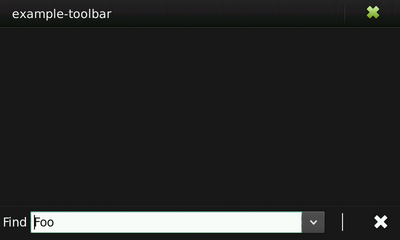
Here a simple example that shows how to deal with a HildonFindToolbar.
Example 4.1. Using a Find Toolbar
<source lang="python">
- Based on C code from:
- "Hildon Tutorial" version 2009-04-28
- Example 4.1, "Using a Find Toolbar"
import sys
import gobject
import gtk
import hildon
def on_history_append(toolbar, user_data):
   # Get last added index
   index = toolbar.get_last_index()
   # Get the inner list
   list = toolbar.get("list")
   # Get the item
   iter = list.get_iter_from_string("%d" % index)
item, = list.get(iter, 0)
print sys.stderr, "ADDED TO THE LIST : %s" % item
def main():
   program = hildon.Program.get_instance()
   window = hildon.Window()
program.add_window(window)
   # Create and populate history list model
   store = gtk.ListStore(gobject.TYPE_STRING)
   iter = store.append()
   store.set(iter, 0, "Foo")
   iter = store.append()
   store.set(iter, 0, "Bar")
   iter = store.append()
   store.set(iter, 0, "Baz")
   # Create find toolbar
   toolbar = hildon.FindToolbar("Find", store, 0)
   # Set item on index 0 as the current active
   toolbar.set_active(0)
   # Attach a callback to handle "history-append" signal
   toolbar.connect_after("history-append", on_history_append, None)
   # Attach toolbar to window
   window.add_toolbar(toolbar)
window.show_all()
gtk.main()
if __name__ == "__main__":
main()
</source>
In the example above a callback is set to handle the signal "history-append", emitted by the toolbar when a new item is added to the history. Other signals like "history-append" can trigger additional actions when emitted.
Apart from the property which stores the internal list, other properties are available such as "max-characters", which set the maximum length of the search string. For a complete description of the signals and properties available, see the Hildon reference manual.
Edit toolbars are implemented by the widget HildonEditToolbar. This widget is a toolbar to be used as a main control and navigation interface for the edit UI mode. The toolbar contains a label and two buttons, being one of them an arrow pointing backwards and the other a button to perform a certain action. It also displays a label which explain to the users the action that the second button performs and gives intructions on how to perform the action properly.
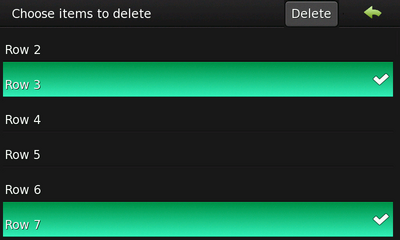
A typical example could be a view to delete several items in a list. The label would advise the user to select the desired items that will be deleted clicking the button.
Typically the toolbar is attached to an edit view (a HildonStackableWindow) used by the program to perform a certain editing action.
The action to be performed by clicking the action button should be implemented in a callback that handles the signal "button-clicked". More will be shown in the example.
To create a new HildonEditToolbar use:
<source lang="python">
hildon.EditToolbar(label = None, button = None)
</source>
If you have used the default constructor function you can set label and button label later using:
<source lang="python">
def set_label(self, label)
def set_button_label(self, label)
</source>
When the edit toolbar is configured, attach it to a window by using:
<source lang="python">
def add_toolbar(self, toolbar)
</source>
The example below shows how to use an edit toolbar. It has a main window containing a list of items plus a button that calls an edit view. The user can select several items and deleted by clicking the action button of the toolbar.
The action to be done by clicking the button should be implemented in a callback. It has to be attached to the signal "button-clicked". There is also another signal called "arrow-clicked", emitted when users click the arrow (to go back to the previous screen). Typically the callback for this later signal destroys the current edit view.
Example 4.2. Using an Edit Toolbar
<source lang="python">
- Based on C code from:
- "Hildon Tutorial" version 2009-04-28
- Example 4.2, "Using an Edit Toolbar"
import gobject
import gtk
import hildon
store = None
def get_model():
global store
   if store is not None:
       return store
   store = gtk.ListStore(gobject.TYPE_STRING)
   for i in xrange(50):
       str = "\nRow %d\n" % i
       store.insert(i, [str])
return store
def create_treeview(tvmode):
   tv = hildon.GtkTreeView(tvmode)
   renderer = gtk.CellRendererText()
   col = gtk.TreeViewColumn("Title", renderer, text=0)
tv.append_column(col)
   # Set multiple selection mode
   selection = tv.get_selection()
   selection.set_mode(gtk.SELECTION_MULTIPLE)
model = get_model()
tv.set_model(model)
return tv
def delete_button_clicked(button, treeview):
selection = treeview.get_selection()
(model, selected_rows) = selection.get_selected_rows()
   row_references = []
   for path in selected_rows:
       ref = gtk.TreeRowReference(model, path)
       row_references.append(ref)
   for ref in row_references:
       path = ref.get_path()
       iter = model.get_iter(path)
       model.remove(iter)
def edit_window(button):
   window = hildon.StackableWindow()
   window.set_border_width(6)
   # Create a new edit toolbar
   toolbar = hildon.EditToolbar("Choose items to delete", "Delete")
   area = hildon.PannableArea()
   tree_view = create_treeview(gtk.HILDON_UI_MODE_EDIT)
   # Add toolbar to the window
   window.set_edit_toolbar(toolbar)
   area.add(tree_view)
   window.add(area)
toolbar.connect("button-clicked", delete_button_clicked, tree_view)
toolbar.connect_object("arrow-clicked", gtk.Window.destroy, window)
window.show_all()
   # Set window to fullscreen
   window.fullscreen()
def main():
   window = hildon.StackableWindow()
   window.connect("destroy", gtk.main_quit)
   vbox = gtk.VBox(False, 10)
   area = hildon.PannableArea()
tree_view = create_treeview(gtk.HILDON_UI_MODE_NORMAL)
   button = hildon.GtkButton(gtk.HILDON_SIZE_AUTO_WIDTH | gtk.HILDON_SIZE_FINGER_HEIGHT)
   button.set_label("Delete some items")
   area.add(tree_view)
   vbox.pack_start(area, True, True, 0)
   vbox.pack_start(button, False, False, 0)
window.add(vbox)
button.connect("clicked", edit_window)
window.show_all()
gtk.main()
if __name__ == "__main__":
main()
</source>
Most of the things related to HildonEditToolbar are in the function edit_window. It creates an edit view (a new HildonStackableWindow) containing a treeview where the user can select several items.
Note: the edit window is set to fullscreen hiding the usual window controls.
Use the widget GtkToolbar as you would use it in a GTK+ application, but consider the following:
- Use
GtkToolbars when only one content item is visible (for example when editing a single image or editing a single email).
- Provide no menu commands or settings for hiding or showing toolbar. The toolbar is always shown in the view where you decided to put it.
Like the others toolbars, attach a GtkToolbar to a window by using:
<source lang="python">
def add_toolbar(self, toolbar)
</source>
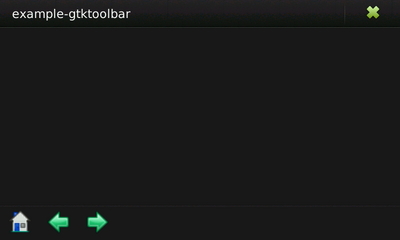
The following example shows how to use a GtkToolbar. The use is very close to how it would be use in a normal GTK+ application.
Example 4.3. Using a GtkToolbar in a Hildon application
<source lang="python">
- Based on C code from:
- "Hildon Tutorial" version 2009-04-28
- Example 4.3, "Using a GtkToolbar in a Hildon application"
import gtk
import hildon
def app_quit(widget, data=None):
gtk.main_quit()
def on_clicked (toolbutton, index):
print "Index of clicked item : %d" % index
def main():
   program = hildon.Program.get_instance()
   gtk.set_application_name("hildon-touch-selector example program")
   window = hildon.StackableWindow()
   program.add_window(window)
   # Create a toolbar
   toolbar = gtk.Toolbar()
   # Add items to the toolbar
   toolitem = gtk.ToolButton(gtk.image_new_from_stock(gtk.STOCK_HOME,
                             gtk.ICON_SIZE_LARGE_TOOLBAR),
                             "Home")
   toolitem.connect("clicked", on_clicked, 0)
   toolbar.insert(toolitem, 0)
   toolitem = gtk.ToolButton(gtk.image_new_from_stock(gtk.STOCK_GO_BACK,
                             gtk.ICON_SIZE_LARGE_TOOLBAR),
                             "Back")
   toolitem.connect("clicked", on_clicked, 1)
   toolbar.insert(toolitem, 1)
   toolitem = gtk.ToolButton(gtk.image_new_from_stock(gtk.STOCK_GO_FORWARD,
                             gtk.ICON_SIZE_LARGE_TOOLBAR),
                             "Forward")
   toolitem.connect("clicked", on_clicked, 2)
   toolbar.insert(toolitem, 2)
   # Add toolbar to the window
   window.add_toolbar(toolbar)
   window.connect("destroy", app_quit)
   window.show_all()
   gtk.main()
if __name__ == "__main__":
main()
</source>